
Generate and edit AI images in WordPress with Pendid AI Studio
Create featured images, article visuals, hero graphics, landing-page assets and product imagery from the WordPress dashboard. Review the result, refine it with a text instruction and save successful outputs directly to the Media Library without repeating the usual download-and-upload workflow.
- Available on WordPress.org
- Works inside WordPress admin
- Saves successful outputs to Media Library
- No public frontend generator added
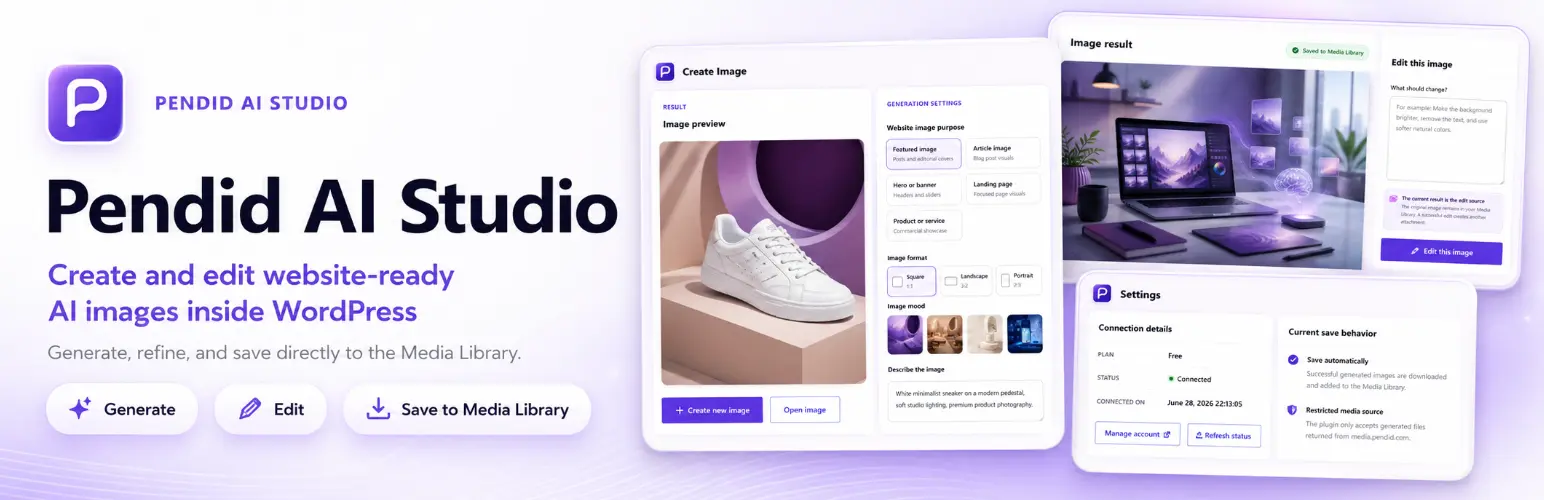
What is the Pendid AI Studio WordPress plugin?
Pendid AI Studio is an administration plugin that moves image generation, image revision and Media Library delivery into the WordPress dashboard.
A typical website-image workflow can involve several separate steps: open an external AI tool, generate an image, download the file, rename it, return to WordPress, upload it to Media Library and then continue editing the page or article.
Pendid AI Studio is designed to shorten that loop. An administrator can describe the image, choose the intended use and aspect ratio, generate the visual, review it and have a successful output added to WordPress as a normal attachment.
This makes the plugin useful for blogs, editorial sites, business websites, landing pages, ecommerce projects, content agencies and administrators who regularly need new visual material.
Core features of the AI image generator for WordPress
Choose a purpose such as a featured image, article visual, hero graphic, landing-page image or product visual so the creative brief starts from a real site task.
Submit a text-guided edit. A successful revision is saved as a new file and WordPress attachment while the previous image remains available.
Successful outputs are added to Media Library as ordinary WordPress attachments, ready for use in posts, pages and supported design workflows.
Provide a JPG, PNG or WebP reference when you want the generation request to consider an existing visual, composition or product reference.
The current plugin offers 1:1, 3:2 and 2:3 choices for square, horizontal and portrait-oriented image needs.
The connection flow uses dedicated authorization steps. Your WordPress administrator password is not sent to Pendid as part of the connection process.
How the WordPress AI image workflow works
The plugin is built around a short administrator workflow so the image can move from idea to WordPress attachment with fewer context switches.
Start the connection from WordPress, approve the requested site connection and return to the dashboard.
Choose the intended use, aspect ratio and visual direction, then write the image description and add a reference image if needed.
Review the generated image in the plugin and submit a focused edit instruction when a revision is needed.
A successful result is saved to Media Library so it is ready for your post, page or other content workflow.
Manage website image creation without leaving WordPress
One focused view for account and image activity
After connecting your Pendid account, the plugin dashboard brings connection status, account information, quick access to image tools and the latest successful result into one administration view.
- See Pendid connection and account status
- Open image creation and Media Library workflows quickly
- Admin-focused experience with no public generator added to your site

Describe the image your page, article, hero or product needs
From website brief to publishable visual
Choose the intended website use, aspect ratio and visual direction, write the image brief and optionally provide a reference image so the result can better match the real content task.
- Website-oriented goals for featured images, articles, heroes, landing pages and products
- Current 1:1, 3:2 and 2:3 aspect-ratio options
- Optional JPG, PNG and WebP reference-image support

Choose a visual mood before generation
Faster creative direction without prompt jargon
Preset visual directions help administrators move toward a more professional, sales-oriented, premium, modern, minimal, friendly or playful result without having to write every visual term manually.
- Visual previews make styles easier to compare
- A faster starting point for non-designers and content teams
- Useful when a website needs a more consistent creative direction

Review the result, save it and continue editing
Create a new revision without overwriting the previous file
A successful generated image appears in the plugin and is saved to the WordPress Media Library. You can then submit a focused edit instruction; a successful edit is stored as a new image and attachment.
- Successful outputs are saved to Media Library
- Edit the current image with a text instruction
- Keep the previous result while creating a new attachment

Keep account connection and disconnect controls in WordPress
Connection management stays with the site administrator
The settings screen shows connection information, keeps the internal token hidden from the interface and lets the administrator refresh account status or disconnect the site.
- Internal connection token is not displayed in the settings interface
- Refresh account and access status from Pendid
- Disconnect locally and request server-side access revocation

Security, privacy and plugin access boundaries
The current plugin is designed for WordPress administration. It sends the information needed to connect the site and execute the image request, while keeping unrelated public visitor activity outside the image-generation workflow.
Important distinction: the plugin is available through WordPress.org. AI processing is provided through the connected Pendid account and depends on the account's current access, plan and usage.
What kinds of WordPress sites can use Pendid AI Studio?
Create featured images and article visuals without moving the same file manually between several tools.
Prepare hero images, service visuals and landing-page assets that match the content task being edited.
Create or refine product-oriented visuals and bring successful results directly into WordPress.
Reduce repetitive file handling when preparing image options for multiple posts, pages, campaigns or clients.
Generate visual directions for landing pages, banners, campaigns and content layouts from the same admin area.
Keep routine website-image creation closer to the people who already manage content in WordPress.
How to install and start using Pendid AI Studio
Open the official Pendid AI Studio page on WordPress.org or search for the plugin from the Add Plugins screen in WordPress.
Install it like a standard WordPress plugin. After activation, the Pendid administration area becomes available in the dashboard.
Review the connection request, sign in to Pendid when required, approve the site connection and return to WordPress.
Choose the image purpose, ratio, visual direction and brief, then generate the result and review the new Media Library attachment.
Frequently asked questions about the Pendid WordPress plugin
These answers cover the plugin's role, account connection, Media Library workflow, access boundaries and common setup questions.
What does the Pendid AI Studio WordPress plugin do?
Pendid AI Studio lets a WordPress administrator generate and edit website images from the WordPress dashboard and save successful outputs directly to the Media Library. It is designed for featured images, article visuals, hero graphics, landing pages, product visuals and other website content.
Is the Pendid AI Studio plugin available on WordPress.org?
Yes. The plugin can be installed from its official WordPress.org listing. AI processing is connected to your Pendid account and depends on the access, plan and usage available to that account.
Do I need a Pendid account to use AI generation?
Yes. The plugin connects to Pendid for authentication, access checks and image processing. The connection is completed through a dedicated approval flow; you do not need to manually paste your WordPress password into Pendid.
Where are generated images saved?
A successful output is retrieved by the plugin from the approved Pendid media host and added to WordPress as a normal Media Library attachment, ready to use in posts, pages and other supported website content.
Does the plugin add scripts or widgets to my public website?
The current plugin is focused on the WordPress administration area. It does not add a public image-generation widget, visitor-tracking script or design interface to the frontend simply because the plugin is installed.
Can I edit an image after it is generated?
Yes. You can submit an edit instruction for the current image. A successful edit is stored as a new image and WordPress attachment, so the previous version is not overwritten.
What aspect ratios are available?
The current plugin interface includes 1:1, 3:2 and 2:3 output ratios. These can suit common WordPress needs such as square visuals, horizontal article or hero images and portrait content. Use the live plugin interface as the source of truth if the available options change.
Can I provide a reference image?
Yes. The plugin supports an optional JPG, PNG or WebP reference image within the applicable WordPress and plugin limits. The reference is sent for processing when you choose to use it; it is not automatically added to the Media Library as a separate reference attachment.
Does the plugin send my WordPress administrator password?
No. The connection flow does not require sending the WordPress administrator password to Pendid. The plugin sends the information needed to establish the site connection and process the image request.
Does the plugin send visitor activity or post content to Pendid?
The current plugin is not designed to send general visitor activity or automatically transmit your post content. Image processing uses the connection information, image instruction, selected settings and an optional reference file when you choose one.
Do I need WooCommerce?
No. Pendid AI Studio is a standalone WordPress plugin. It can be useful on ecommerce sites, but WooCommerce is not required for installation.
How do I install and connect the plugin?
Install Pendid AI Studio from its official WordPress.org listing or search for it in the Add Plugins screen. After activation, open the Pendid area in WordPress, start the account connection flow, approve the connection and return to your WordPress dashboard.
Create website images where you already manage the content
Pendid AI Studio shortens the gap between generating an image and using it in WordPress. The site administrator can define the image task, generate a result, request a revision and receive a successful version directly in the Media Library.
That workflow can be especially useful when a WordPress site needs a steady stream of featured images, article visuals, landing-page graphics, product material and other content assets without a complicated file-transfer routine.