
Convert text to speech and download an MP3
Turn written into generated speech in your browser. Choose from the voices and reading options currently available, adjust the pacing, listen to the result and download the final MP3 for video, social content, presentations, explainers and other projects.
- Text input
- Selectable voices
- Reading-style controls
- MP3 output
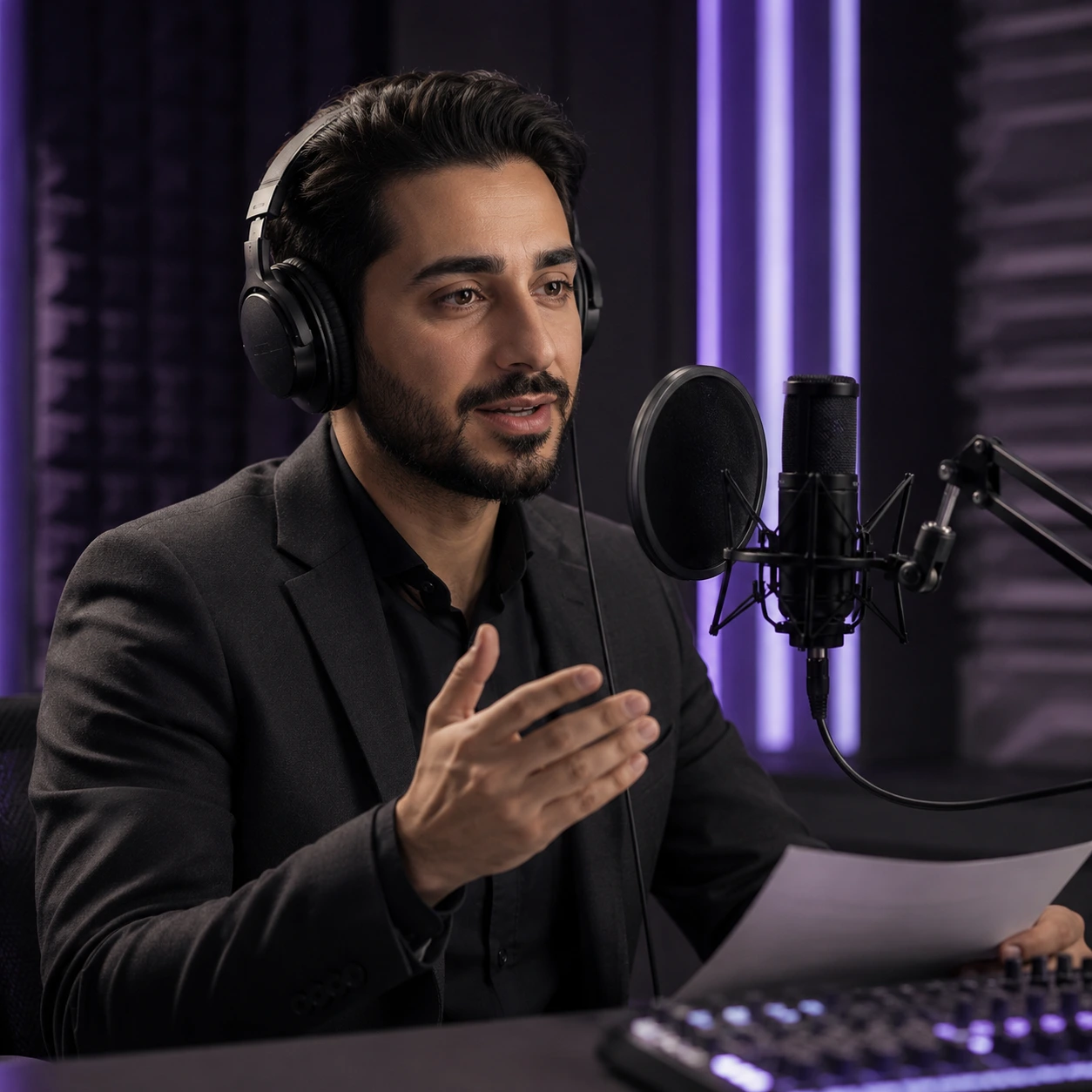
What is AI text to speech?
Text to speech, or TTS, converts written text into generated audio. Pendid lets you turn prepared text into speech directly in the browser using the voices and reading options currently available in the live tool.
Instead of recording every line manually, you can prepare the script, choose a voice direction and create an audio file from the written content. It can be useful for quick voiceovers, social clips, short product introductions, educational material, presentation narration and prototype audio.
Current availability: supported voices, reading styles and language coverage can evolve over time. Use the live Pendid Studio interface as the source of truth for the options currently available.
Listen to current voice samples
Use the samples as a quick way to compare available voice directions before spending account usage on a full generation.
Voice sample
Voice sample
Voice sample
Voice sample
What can you control before generating speech?
Choose from the voices currently available in the live tool.
Use the current formal or conversational reading options where available.
Choose among current directions such as advertising, natural, storytelling or serious.
Adjust pacing so the result better matches the type of content.
Review text length and the live usage requirement before generation.
Review the completed audio and download the current MP3 output.
Where AI-generated speech can be useful
Create a first-pass or final narration for short video projects when the selected voice fits the task.
Prepare speech for short-form clips, product introductions and social posts.
Turn prepared explanations into audio for lessons, slides and learning content.
Prototype a voice track before investing in a larger recording workflow.
Add narration to slide-based explainers and internal presentations.
Test narrative pacing with the storytelling-oriented voice direction currently available.
How to convert text to speech
Use clear sentences and punctuation where natural pauses should occur.
Listen to available samples and choose the voice closest to the project.
Select the current style, tone and speed options that fit the content.
Listen to the complete file, fix pronunciation issues in the source text and regenerate when needed.
How to make AI speech sound more natural
Speech generation works better when the written script is easy to read aloud. Treat the text as a spoken script rather than a block copied from a document.
- Use punctuation to create natural pauses
- Split long paragraphs into shorter spoken units
- Rewrite unusual numbers in a more pronounceable form when needed
- Use a more phonetic spelling for difficult names or terms when it improves pronunciation
- Listen to the entire result before publishing
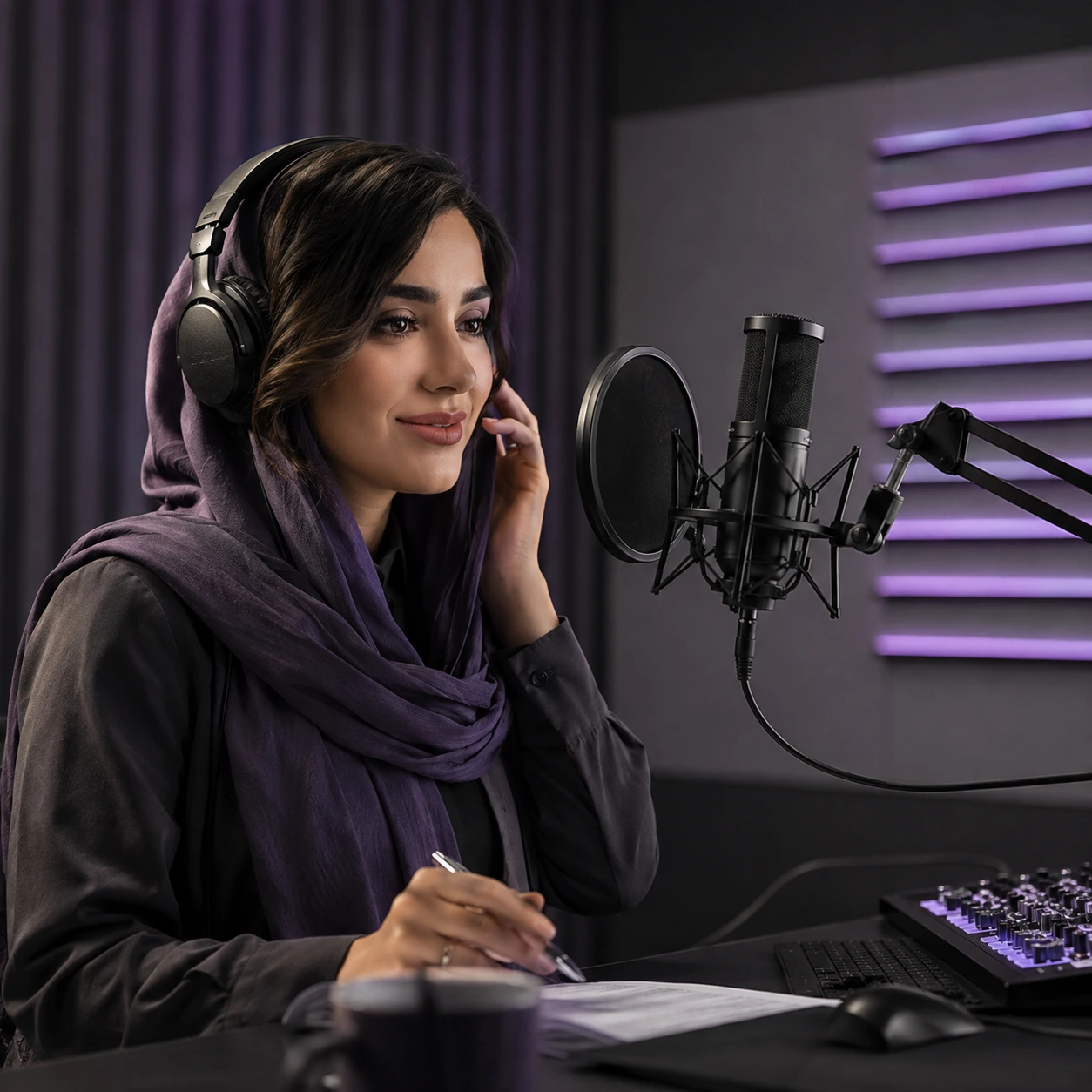
Human review still matters: generated speech can mispronounce a name, abbreviation, technical term or uncommon phrase. Fix the source text and listen again before final use.
Current limits and account usage
The current tool accepts up to 5,000 characters per request and calculates usage from text length. Because account rules and product settings can change, the live Pendid Studio interface is the source of truth for current access and the requirement shown before generation.
Frequently asked questions about AI text to speech
What is AI text to speech?
AI text to speech converts written text into generated speech. In Pendid Studio, you enter text, choose from the voices and reading options currently available, generate the audio and download the resulting MP3.
Do I need to install software?
No. The tool runs in the browser. Open the text-to-speech workspace in Pendid Studio, enter your text, choose the available voice and settings, then generate the audio.
Can I choose between different voices?
Yes. The live tool provides selectable voices. Available voices can change over time, so the current Studio interface is the source of truth.
Can I change the reading style?
Yes. Pendid can provide different reading directions and voice styles depending on the options currently available in the live tool.
Can I change the reading speed?
Yes. The interface provides reading-speed options so you can better match the pacing to the type of content.
What file format does Pendid TTS produce?
The current output is an MP3 audio file that can be played and downloaded after generation.
What is the current text-length limit?
The current tool accepts up to 5,000 characters per request. For longer material, split the text at natural boundaries such as paragraphs or topic changes. Check the live interface in case this limit changes.
How is text-to-speech usage calculated?
The current tool calculates usage from text length rather than the final audio duration. The live interface shows the current character count and required account usage before generation.
Can I listen to voice samples before generating?
Where a sample is available, you can listen before choosing a voice. This page also includes current sample audio hosted by Pendid Studio.
Can I use the generated MP3 in a video?
Yes, subject to your rights and the applicable Pendid terms. The MP3 can be used in video, presentations, social content and other audio-visual projects.
How can I make AI speech sound more natural?
Use clear sentences, punctuation for natural pauses, readable forms of numbers and names, and split very long text into logical sections. Unusual names or technical terms may need phonetic rewriting.
Does Pendid currently provide public voice cloning?
No. The current public tool uses selected available voices and does not provide a general public feature for cloning or impersonating a personal voice.
Can AI speech mispronounce words?
Yes. Proper names, abbreviations, technical expressions, numbers and uncommon word combinations can be pronounced incorrectly. Listen to the complete result before publishing and revise the source text when needed.
Can I use text to speech for marketing or product content?
Yes. Depending on the project, generated speech can be useful for product introductions, short promotional videos, social content, presentations, explainers and other audio-visual material.
Where can I see the languages and voices currently supported?
Open the live Text to Speech tool in Pendid Studio. Current language coverage, voices and reading options are shown there and may evolve over time.
Turn your prepared script into an MP3
Choose an available voice, set the reading direction, generate the audio and review pronunciation before using the final file.
Open Text to Speech